
Supported Hotspots in Virtual Tours
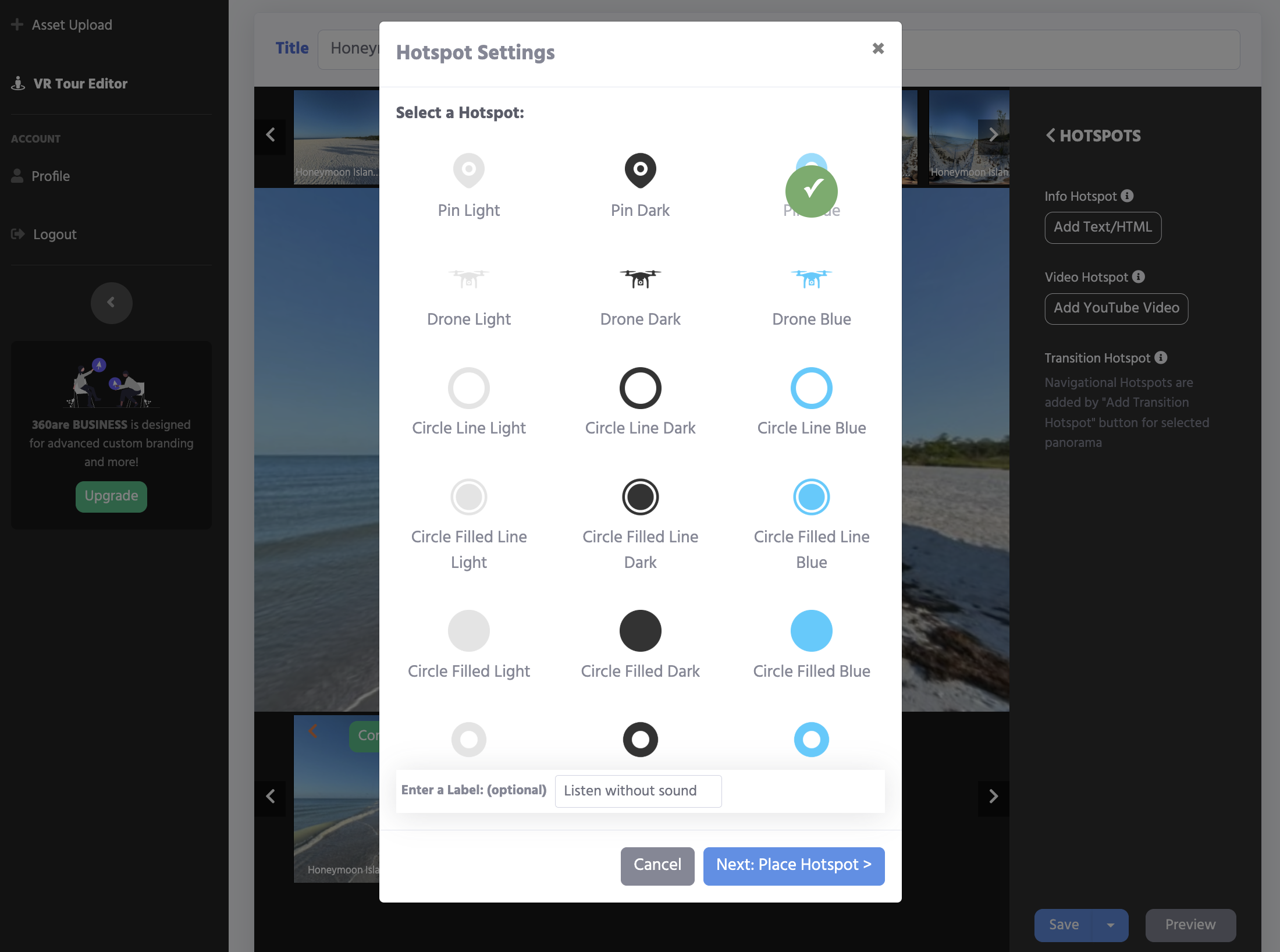
Hotspots are an essential feature of virtual tours, allowing users to navigate between scenes, access additional information, or interact with specific elements. 360are supports several hotspot types that enhance the user experience and add interactivity to your virtual tours. There are transition hotspots that navigate from one panorama scene to another including markers, floor circles, drones, etc., and information hotspots that open popups with text, HTML, video, embedded websites and redirects.
Hotspot Types
1. Marker (Pin)
Markers (or pins) are small icons that can be placed on specific points within the 360-degree view. These are ideal for linking to other scenes of virtual tour.
Use Cases:
- Linking to other scenes or areas in the virtual tour.
Customization:
- Choose from a light, dark, or bright blue icon to fit your design.
2. Floor Circle
Floor circles are interactive elements placed on the ground or floor within a 360-degree photo. They act as navigational hotspots, guiding users to the next scene or point of interest.
Use Cases:
- Smooth transitions between rooms or areas.
- Enhancing spatial orientation for users within indoor environments.
Customization:
- There are multiple floor circle icon designs available to pick from: full circle, empty circle, circle line, etc. Choose from a light, dark, or bright blue icon to fit your design.
3. Drone
Drone hotspots allow you to create transitions or links to aerial views captured via drone. This provides a unique perspective for virtual tours, making them especially engaging for outdoor spaces or large properties.
Use Cases:
- Showcasing the layout of properties, buildings, or entire campuses.
- Providing a bird's-eye view of landmarks or landscapes.
- Connecting ground-level scenes to an aerial perspective.
Customization:
- Choose from a light, dark, or bright blue icon to fit your design.
Information Hotspots (Popups)
Information hotspots don’t navigate; they open a popup over the current panorama. They follow the same icon/variant pattern (light/dark/blue) as markers/floor circles/drones, so your tours stay visually consistent.
4. Text / HTML
Display formatted text or custom HTML in a popup.
- Use Cases:
- Descriptions, lists, rich text, small galleries, contact info.
- Inputs:
- HTML/Text field in the editor.
- Notes:
- Supports sanitized HTML. Avoid heavy external scripts.
5. Video (YouTube)
Embed a YouTube player in the popup.
- Use Cases:
- Feature videos, walkthroughs, promos, explainer clips.
- Inputs:
- YouTube URL (standard or share link).
- Notes:
- Player autoloads in a responsive container. Sound starts per browser policy.
6. Embedded Website
Show an external webpage inside an iframe popup.
- Use Cases:
- Menus, maps, mini widgets, booking pages.
- Inputs:
- Iframe URL.
- Notes:
- Target site must allow embedding (no X-Frame-Options: DENY/SAMEORIGIN).
If a page refuses to load inside the popup, use a Redirect action button to open it instead.
7. Redirect (Action Button)
Popup with a call-to-action button that opens a link (same tab or new tab).
- Use Cases:
- "Buy tickets," "Book now," "Visit website," "Open map."
- Inputs:
- Action Button URL (optional label).
- Choose open in new tab (recommended) vs same tab.
If you are connecting rooms for the first time, follow How to Create a Virtual Tour in 360are. For map-based navigation, see Add an Interactive Floor Plan to a Virtual Tour.
How to Add Hotspots in 360are
- Go to All Assets and open the virtual tour editor.
- Choose the scene where you want a hotspot.
- Select a hotspot type:
- Transition: Marker, Floor Circle, Drone.
- Information: Text/HTML, Video (YouTube), Embedded Website, Redirect.
- Customize the icon variant (light/dark/blue) and optional label.
- For information hotspots, fill the corresponding input:
- HTML/Text, YouTube URL, Iframe URL, or Action Button URL.
- Place the hotspot on the panorama and Save.
- Preview the tour to verify placement and behavior.
How to Edit Hotspots
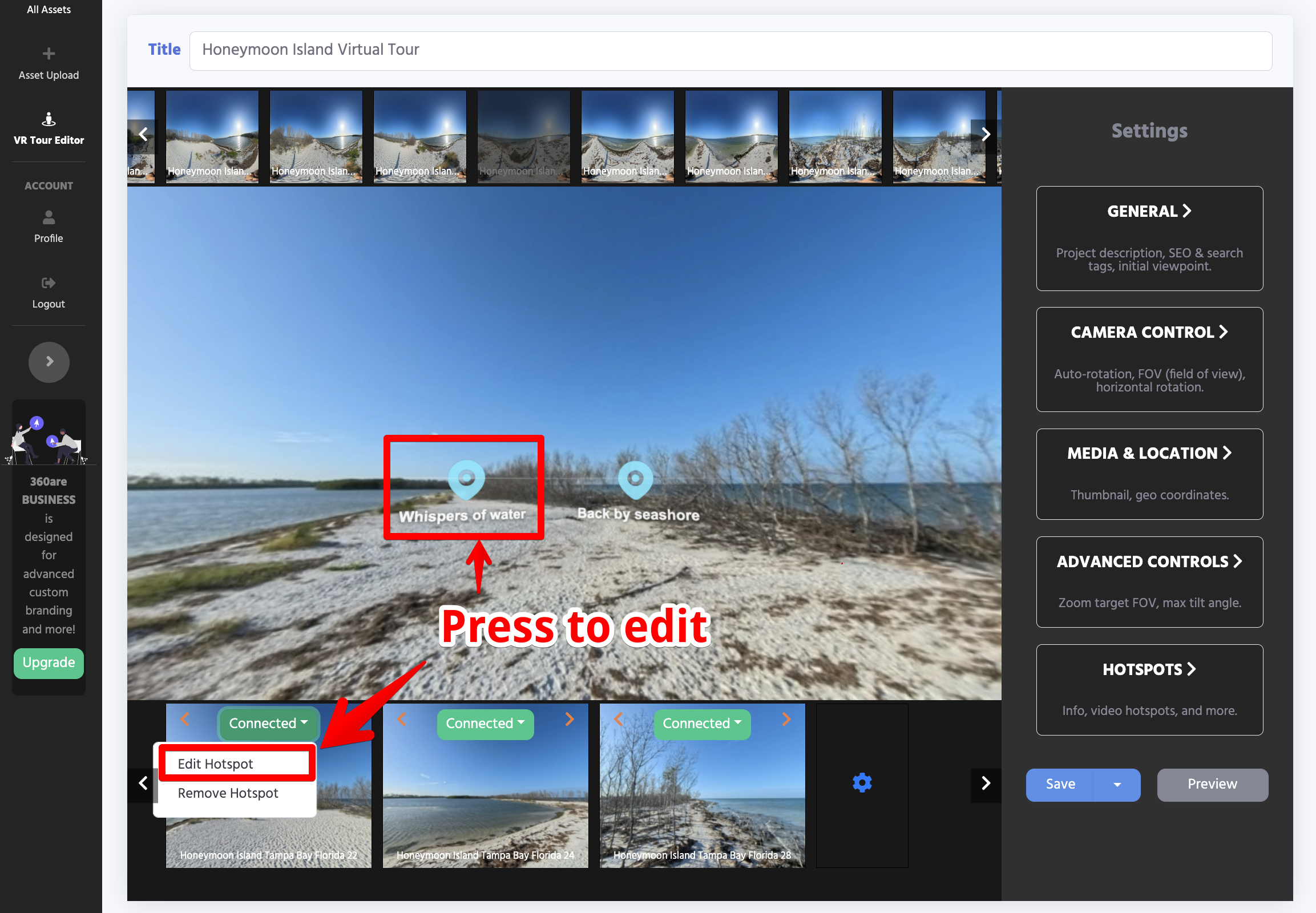
Pressing on existing hotspot in your panorama virtual tour editor will open up a popup with existing configurations. Modify as needed and save changes.
Transition hotspots can also be edited by opening the "Connected" dropdown menu in addition to pressing the hotspot icon.
Best Practices for Hotspots
- Keep it Intuitive: Use consistent iconography and positioning to avoid confusing users.
- Don't Overcrowd: Too many hotspots can overwhelm the viewer—focus on the most relevant points of interest.
- Provide Context: Add short, descriptive labels or tooltips to guide users.
Hotspots are a powerful tool for enhancing virtual tours, and with 360are's flexible features, you can create seamless, interactive experiences for your audience.