
AI Chat for Virtual Tours: Setup and Usage
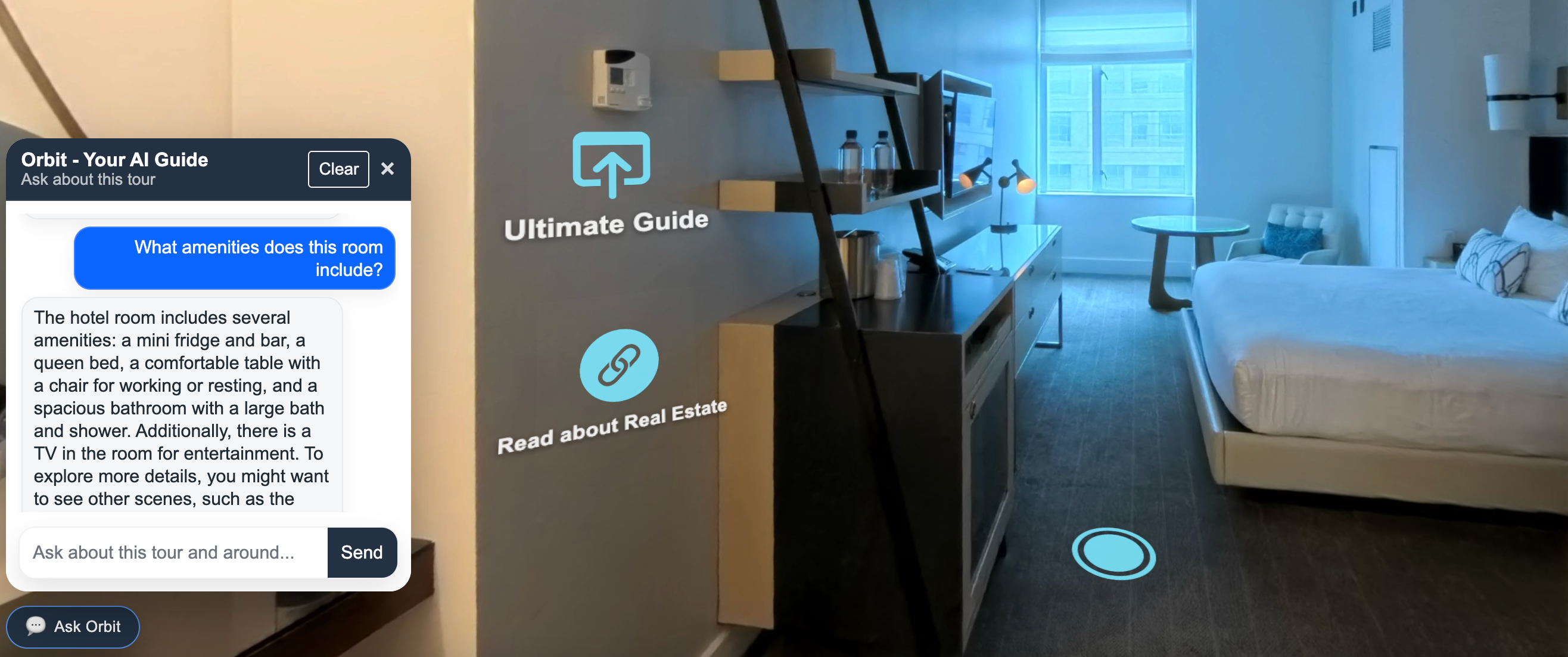
360are AI Chat lets visitors ask questions while exploring a panorama or virtual tour. Useful answers start with accurate information about the space: clear titles, descriptions, scene names, and relevant location details.
Availability and Usage
AI Chat is included with BUSINESS and is available as an optional PLUS add-on. Included questions and additional usage charges depend on the plan. Check current AI Chat allowances and pricing before enabling it for a public tour.
The tour owner should review the account's usage information. Avoid treating visitor access as unlimited simply because the tour itself is publicly available.
Prepare Your Tour Information
Before enabling AI Chat:
- Give the project a descriptive title.
- Add a factual description of the property or location.
- Use clear scene names such as Kitchen, Reception, or Main Gallery.
- Add relevant tags and accurate location information when appropriate.
- Include useful scene descriptions or hotspot information where the editor supports them.
- Check that the scene connections lead to the expected rooms.
Only describe features you can verify. If opening hours, booking conditions, accessibility details, or property features change, update the tour information too.
See tour and panorama settings for descriptions, tags, location fields, and AI enablement.
Enable AI Chat
- Open the panorama or tour from All Assets.
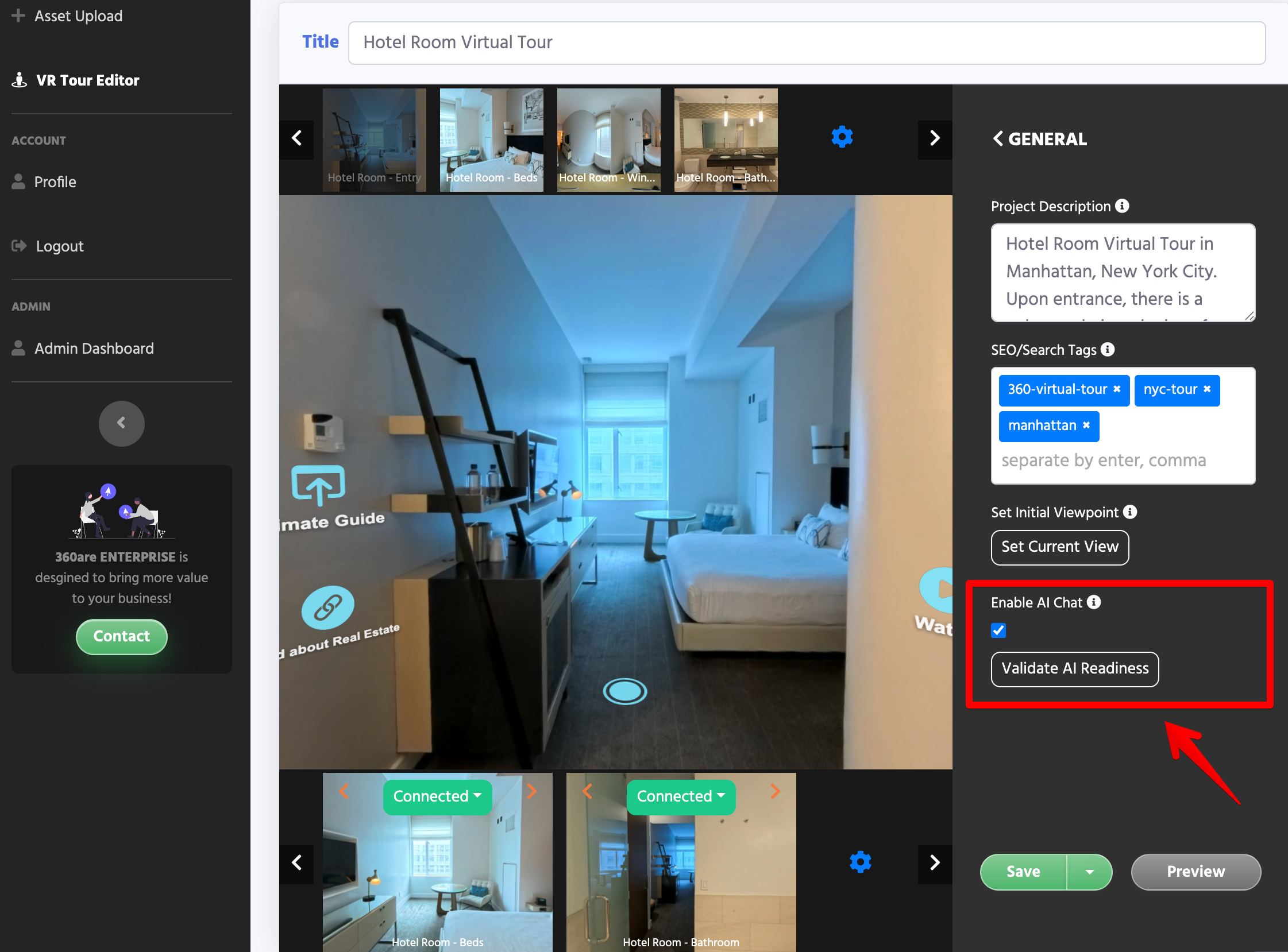
- Open its configuration options and find General → Enable AI Chat.
- If Validate AI Readiness is available, use it to review whether the project has enough information.
- Enable AI Chat, save the project, and preview it.
- Test the visitor experience before sharing the published tour.
Test Questions Before Sharing
Ask a few questions a visitor is likely to ask, such as:
- What room am I viewing?
- Where is the kitchen?
- What amenities are described in this tour?
- How can I contact the business for more information?
Compare the responses with the information you supplied. AI can make mistakes; a confident answer is not proof that the underlying detail is correct. Improve unclear descriptions and retest.
If a response offers a scene-navigation action, verify that it opens the intended scene. Keep normal hotspots and floor-plan navigation available so visitors can explore directly.
Use navigation and information hotspots or an interactive floor plan alongside AI Chat.
Multilingual Questions
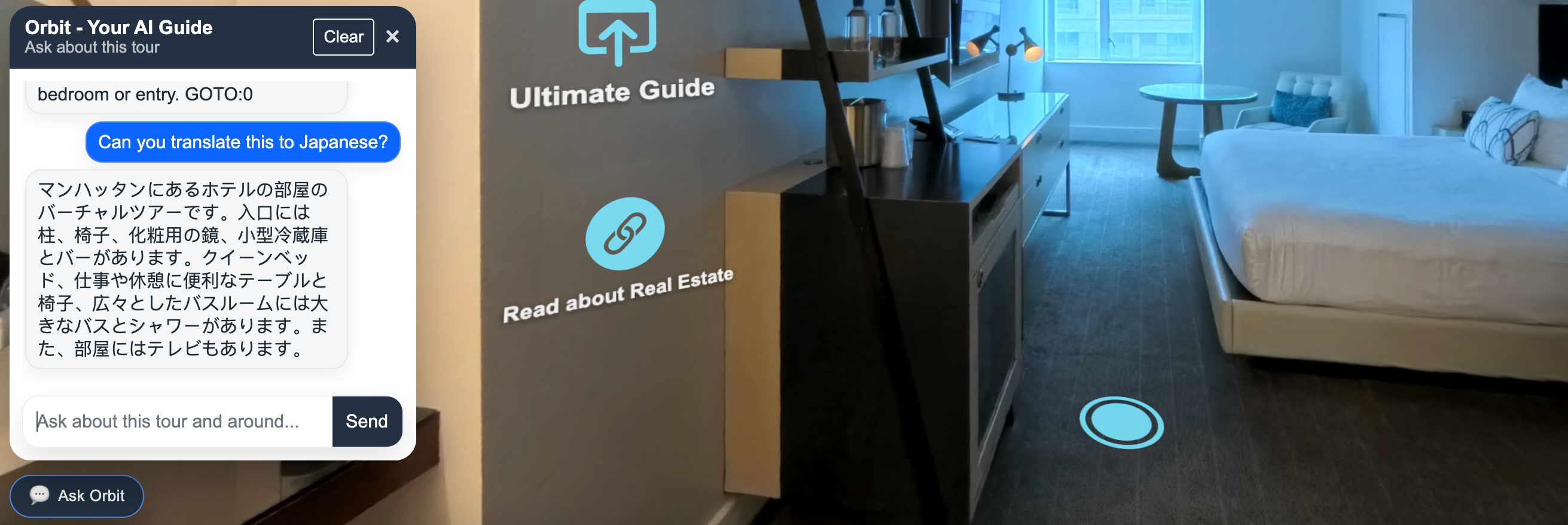
Visitors may ask questions in different languages. Test the languages that matter to your audience, especially proper names, room names, and instructions.
Examples Across Industries
For a property tour, help visitors understand the rooms and documented features. For a hotel, describe rooms and amenities without promising live availability. For a school or gallery, use clear names and factual descriptions to support exploration.
Provide a visible contact option for questions that need a person. AI Chat is a visitor-assistance feature; it does not guarantee more inquiries, bookings, or search traffic.
Troubleshooting
AI Chat Does Not Appear
Check your plan or add-on, confirm that AI Chat is enabled, save the project, and reopen the preview. If the issue remains, contact 360are Support with the tour link and a description of what you see.
An Answer Is Incomplete or Incorrect
Review the project and scene descriptions. Add missing factual context, remove outdated details, and test again. Use contact links or information hotspots for details visitors must be able to confirm directly.
A Usage Limit Is Reached
Review the account's AI usage and the current plan allowances. The number of published tours does not determine the number of included AI questions.