
How to Add Lead Capture to a Virtual Tour
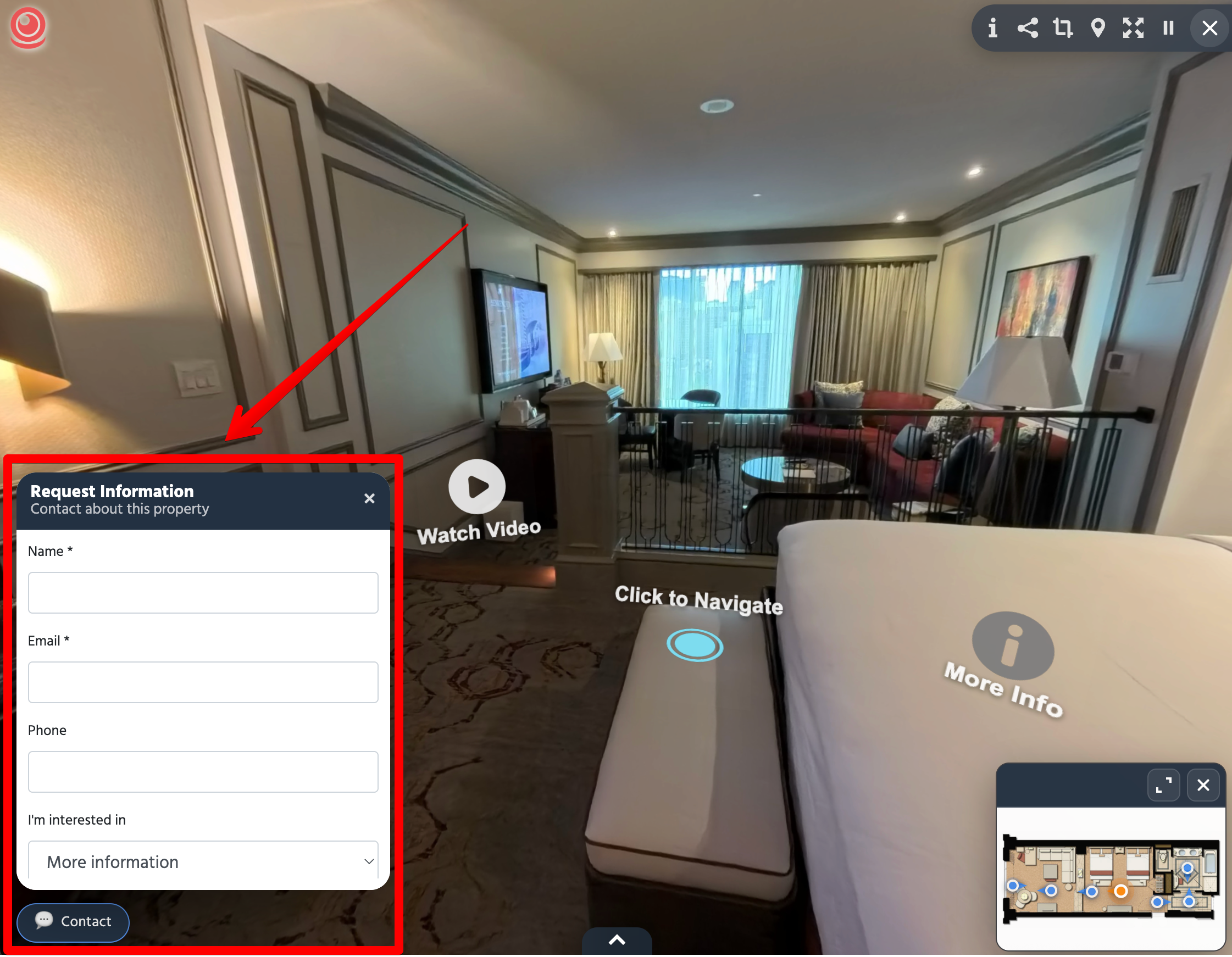
Lead capture gives visitors a way to ask about a property or space while exploring its virtual tour. Their request is stored for follow-up, and the account owner receives an email notification after submission.
Availability
Lead capture is available with PLUS and higher plans. BUSINESS and higher plans provide CRM access and the ability to import your own leads. See current plans for availability.
Lead capture is for multi-scene virtual tours. It can appear in published or private tours when enabled, but does not appear in the unbranded MLS viewer. AI Chat is a separate feature; you do not need to enable AI Chat to collect an inquiry.
Enable Lead Capture
- Sign In and open All Assets.
- Find your virtual tour and open Edit VR Tour from its action menu.
- Open the tour's configuration options.
- Under Advanced Controls, turn on Enable Lead Capture.
- Save the tour. When it is ready for public visitors, use the appropriate publishing option.
- Open the normal visitor-facing tour link and check that the contact form is available.
If you are still building the tour, follow How to Create a Virtual Tour first. The configuration guide explains saving, previewing, and publishing.
What Visitors Can Submit
The form includes:
| Field | What the visitor provides |
|---|---|
| Name | Their name |
| An email address for your response | |
| Phone | A telephone number |
| Type of inquiry | The reason for contacting you |
| Message | Their question or additional details |
Name and email are marked as required in the form. Inquiry choices include requesting more information, scheduling a showing, and asking a question. A showing request is an inquiry for you to follow up on; it is not a confirmed appointment.
When AI Chat is also available, visitors can move from the assistant to Request information. With lead capture alone, they can open the contact form without starting an AI conversation.
Where Requests Go
Submitted requests are stored in the CRM in the website's admin section. An email notification alerts the account owner to a new submission. BUSINESS and higher users can open Leads to review stored requests and manage follow-up.
See Managing Virtual Tour Leads in the 360are CRM for the lead directory, record details, and importing contacts.
Test Before Sharing
- Open the normal tour link as a visitor, outside your signed-in editing session.
- Open the contact form and enter your own contact information.
- Use a message such as “Test inquiry from the tour owner.”
- Select Send Request and check the confirmation shown in the form.
- Check the email notification and, if your plan includes CRM access, find the test request in Leads.
Use the regular tour link for this test. The MLS version intentionally hides lead capture.
If Something Is Missing
If the form does not appear, check that you are viewing a virtual tour, lead capture is enabled and saved, and your account has PLUS or higher. Check that you are not testing a draft or MLS presentation.
If a request or notification is missing, contact 360are Support. Include the tour URL, the approximate submission time and time zone, the browser used, and any message shown after submission. A missing notification alone does not establish whether the request was stored.